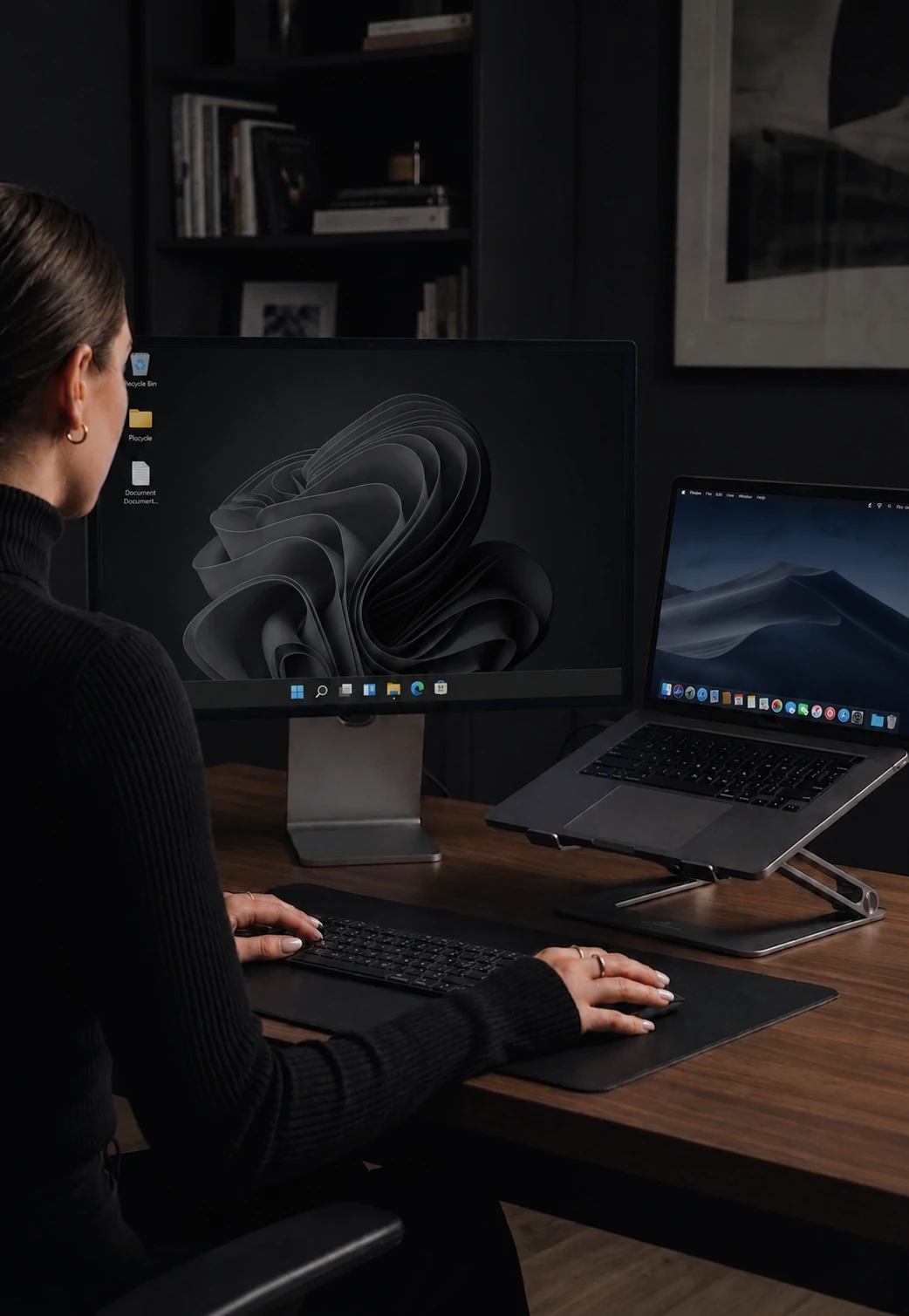

Control two computers with one mouse
Move your cursor to the screen edge and it appears on the other computer. No button press.
How mouse sharing works
CursorHop detects when your cursor reaches a screen boundary. The moment it hits the edge, the movement is sent over your local network to the target computer.
On the receiving side, the cursor appears at the corresponding edge position - as if your screens were physically connected. The transition is instant and feels lag-free on a typical LAN.
No button press required
Unlike hardware KVM switches that require pressing a physical button or keyboard shortcut to switch control, CursorHop's edge detection is completely automatic. Just move your mouse naturally. Your brain quickly stops noticing the boundary between computers.
Works with any mouse
CursorHop works with any mouse - wired, wireless, Bluetooth, trackpad, or trackball. If your operating system can see the mouse, CursorHop can share it.
Why not a hardware KVM switch?
Traditional KVM switches require physical cables running between your computers and the switch box. They add desk clutter, introduce signal latency, and most only support 2 computers. CursorHop is pure software - install it, log in, and go. It supports up to 10 computers on the Max plan.
Cross-platform support
CursorHop works between Windows and macOS - switch machines without a hardware KVM. Move from your MacBook to your Windows PC and back without thinking about it. Key mappings are automatically translated between platforms - Command becomes Ctrl and vice versa.
Supported configurations
Any arrangement of screens works - side by side, stacked, or offset. CursorHop detects which edge to use based on your display layout configuration. Up to 10 computers are supported on the Max plan, with 2 on Pro, 5 on Pro Plus.
How it compares
CursorHop is built for low-latency cursor motion that feels local on LAN. For direct comparisons, see CursorHop vs Synergy and CursorHop vs Barrier - both well-known software KVMs with different trade-offs on speed, setup time, and active development status.
Mouse sharing FAQ
How do I share my mouse between two computers?
Install CursorHop on both computers, sign in to the same account, and make sure both machines are on the same local network. Move your cursor to the screen edge and it hops to the other computer automatically - no button press needed.
Does mouse sharing work between Mac and Windows?
Yes. CursorHop runs natively on Windows 10+ and macOS 12+, and mouse sharing works in any combination - Mac to Windows, Windows to Mac, or two machines on the same platform.
What's the cursor latency?
Lag-free on a typical LAN. Cursor movement feels local - you should not perceive a delay between moving the mouse and seeing the cursor respond on the other computer.
Do I need a hardware KVM switch?
No. CursorHop replaces physical KVM hardware entirely. Install the software on each computer and move your cursor - no cables, no USB switch box, no dongle.