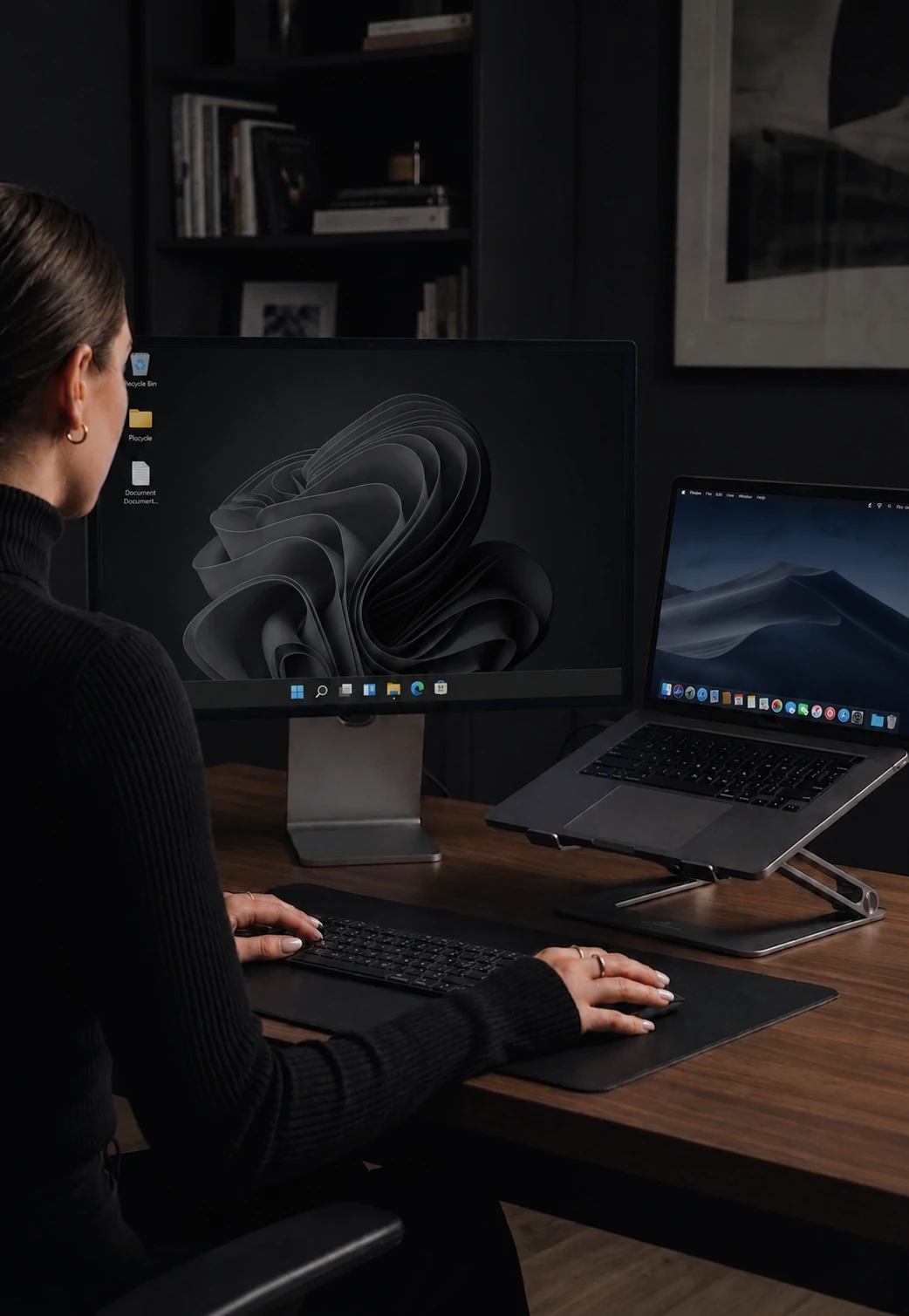

Type on multiple computers with one keyboard
Your keyboard follows your mouse. Whichever screen the cursor is on is where you type.
How keyboard sharing works
CursorHop links your keyboard input to your mouse position. When your cursor moves to another computer's screen, your keyboard input automatically follows. Keystrokes are sent over your local network to whichever machine currently has cursor focus.
The switch is instant. There is no perceptible lag between pressing a key and seeing the character appear on the target computer. It feels exactly like typing on a local keyboard.
Keyboard follows mouse automatically
There is no shortcut to press, no button to click, and no mode to toggle. The moment your cursor crosses to a different screen, keyboard focus moves with it. This "follows mouse" model means you never accidentally type into the wrong machine.
Modifier key mapping
Switching between macOS and Windows means dealing with different modifier keys. CursorHop handles this automatically. When you move from a Mac to a PC, Command is mapped to Ctrl. Option maps to Alt. Going the other direction, the reverse applies. Shortcuts like Cmd+C on Mac become Ctrl+C on Windows without you thinking about it.
Works with any keyboard
CursorHop works with any keyboard your OS recognizes. Mechanical, membrane, laptop, Bluetooth, ergonomic split - they all work. No specific hardware required.
Why not a hardware KVM?
Hardware KVM switches require you to press a button or key combination to change which computer receives your input. This interrupts your workflow every time you switch. CursorHop eliminates that friction entirely - just move your mouse and start typing. No cables, no switching delay, no desk clutter.
Every key layout supported
The receiving operating system applies its own keyboard layout, so QWERTY, AZERTY, Dvorak, Colemak, and international layouts all work correctly. Each computer uses its own configured layout.
Keyboard sharing across plans
Keyboard sharing is available on every plan, including the 7-day trial. The trial uses the Pro Plus feature set for up to 5 computers. Pro supports 2 computers, Pro Plus supports 5, and Max supports 10. Keyboard input is encrypted across every plan.
How it compares
CursorHop handles Ctrl ↔ Cmd translation automatically with no extra configuration. For how this compares to Windows-only tools, see CursorHop vs Mouse Without Borders and CursorHop vs Logitech Flow (the latter needs Logitech peripherals).
Keyboard sharing FAQ
Can I type on both computers with one keyboard?
Yes. CursorHop links keyboard input to cursor position. Whichever computer your mouse is on, that's where your keystrokes go. One keyboard, many machines - no toggling, no hotkey.
Does Ctrl map to Cmd between Windows and Mac?
Yes, automatically. Moving from Mac to Windows, Command becomes Ctrl. Moving back, the reverse happens. Option maps to Alt. Shortcuts like Cmd+C and Ctrl+C feel native on whichever OS your cursor is currently on.
Do keyboard shortcuts and international layouts work across computers?
Yes. CursorHop preserves keys so each computer applies its own layout - QWERTY, AZERTY, Dvorak, Colemak, and international layouts all behave correctly on each machine.
Is my keyboard input encrypted?
Yes. Every keystroke is encrypted on every tier, including the 7-day free trial - important when typing passwords or sensitive data across machines.