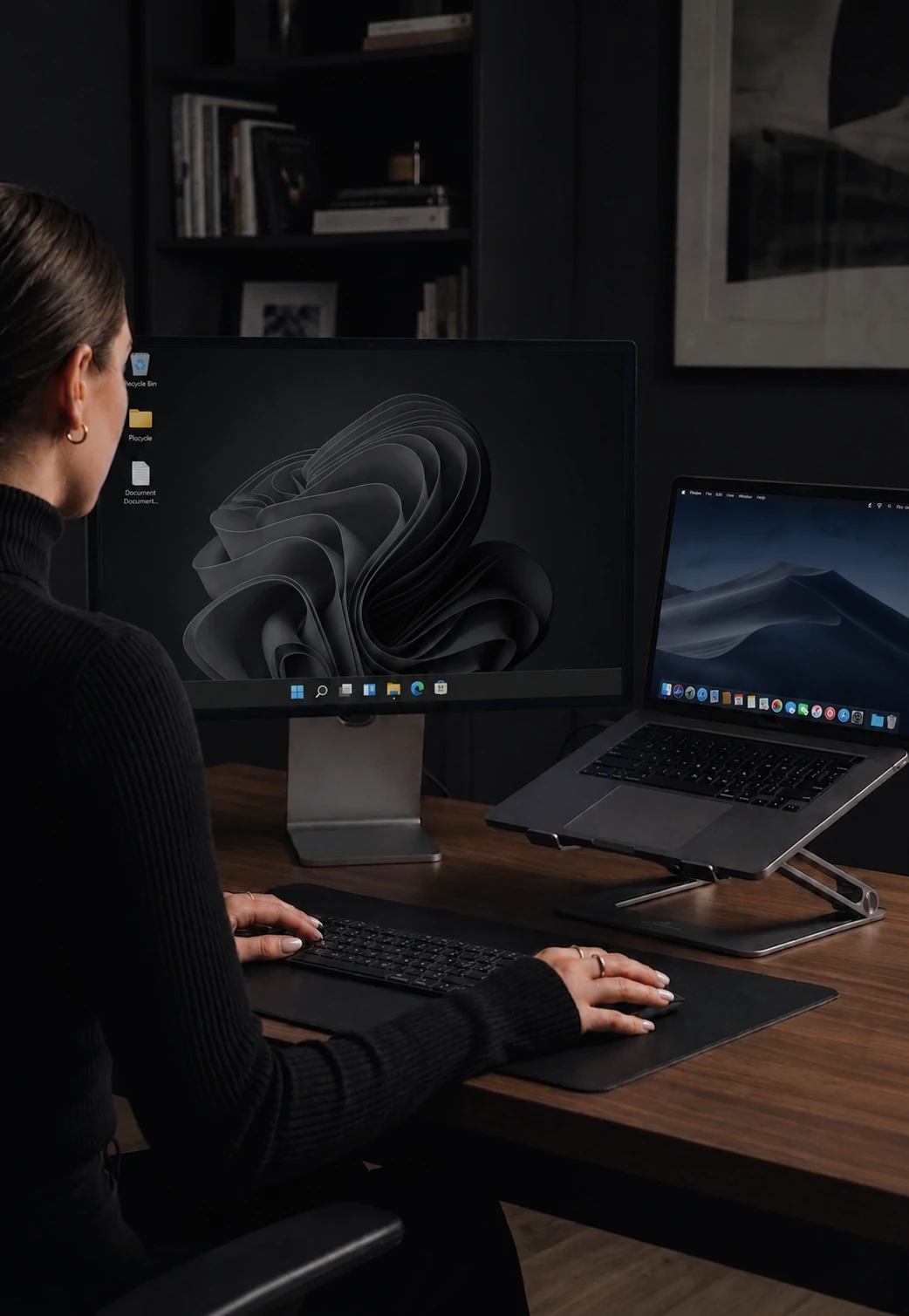

Arrange your computers the way they sit on your desk
A drag-and-drop canvas for every screen. Save once and every computer applies it.
Arrange screens by dragging
Every multi-machine setup has a physical reality: your laptop is to the left of the desktop, the second monitor extends right. CursorHop has to know that arrangement so the cursor lands on the right machine when it leaves a screen. The layout editor is how you tell it - visually, by dragging.
Each connected screen appears on the canvas. Drag it where it belongs and the cursor follows the geometry. Push your mouse off the right edge of the laptop, it appears on the left edge of whatever you put there.
Snap and auto-arrange
As you drag, snap guides help you line edges up cleanly. You do not need pixel-perfect aim - rough alignment is enough. For new setups or when a new machine joins, click Auto-Arrange and CursorHop drops the screens into a sensible default. Tune from there.
Multi-monitor and DPI-aware
If a computer has more than one monitor, each appears as its own screen on the canvas. Resolutions and DPI scaling show up correctly, so a 4K Retina laptop and a high-DPI monitor sit at roughly correct relative sizes.
Saves to every computer
Hit save and the layout reaches every connected machine. The cursor uses the new arrangement on the next edge crossing. No reconnect, no restart.
What it is not
The layout editor controls how CursorHop routes the cursor between machines. It does not change how your OS arranges its own displays - that is still in your OS Display Settings. The two are independent.
Tier availability
All plans - free trial, Pro, Pro Plus, and Max.
How it compares
Synergy and Barrier use a small dialog with left/right/above/below dropdowns. Mouse Without Borders uses a fixed grid. Logitech Flow does not let you arrange. CursorHop is the only one with a free-form draggable canvas. See CursorHop vs Synergy.
Layout Editor FAQ
What does the layout editor do?
It is a visual canvas where you arrange your computer screens to match the way they sit on your physical desk. Drag a screen left, right, above, or below another and the cursor crosses between them the way your eyes expect.
Do I need to type in coordinates or screen IDs?
No. Every connected machine appears as a screen you can drag. Position them by hand. No configuration files, no manual pixel offsets.
Does the layout sync to all my computers automatically?
Yes. Hit save and every connected machine applies the new arrangement. No reconnect, no restart.
How does it handle different resolutions and DPI scaling?
The editor shows each screen at its true proportions, including Retina and high-DPI scaling, so a 4K laptop screen and a 1080p monitor sit at roughly correct relative sizes on the canvas.
What is the auto-arrange button for?
For when you do not want to drag. Click it and CursorHop drops every screen into a sensible default arrangement. Fine-tune from there if you want.
Which tiers include the layout editor?
All of them. The editor is part of the core sharing experience - free trial, Pro, Pro Plus, and Max.