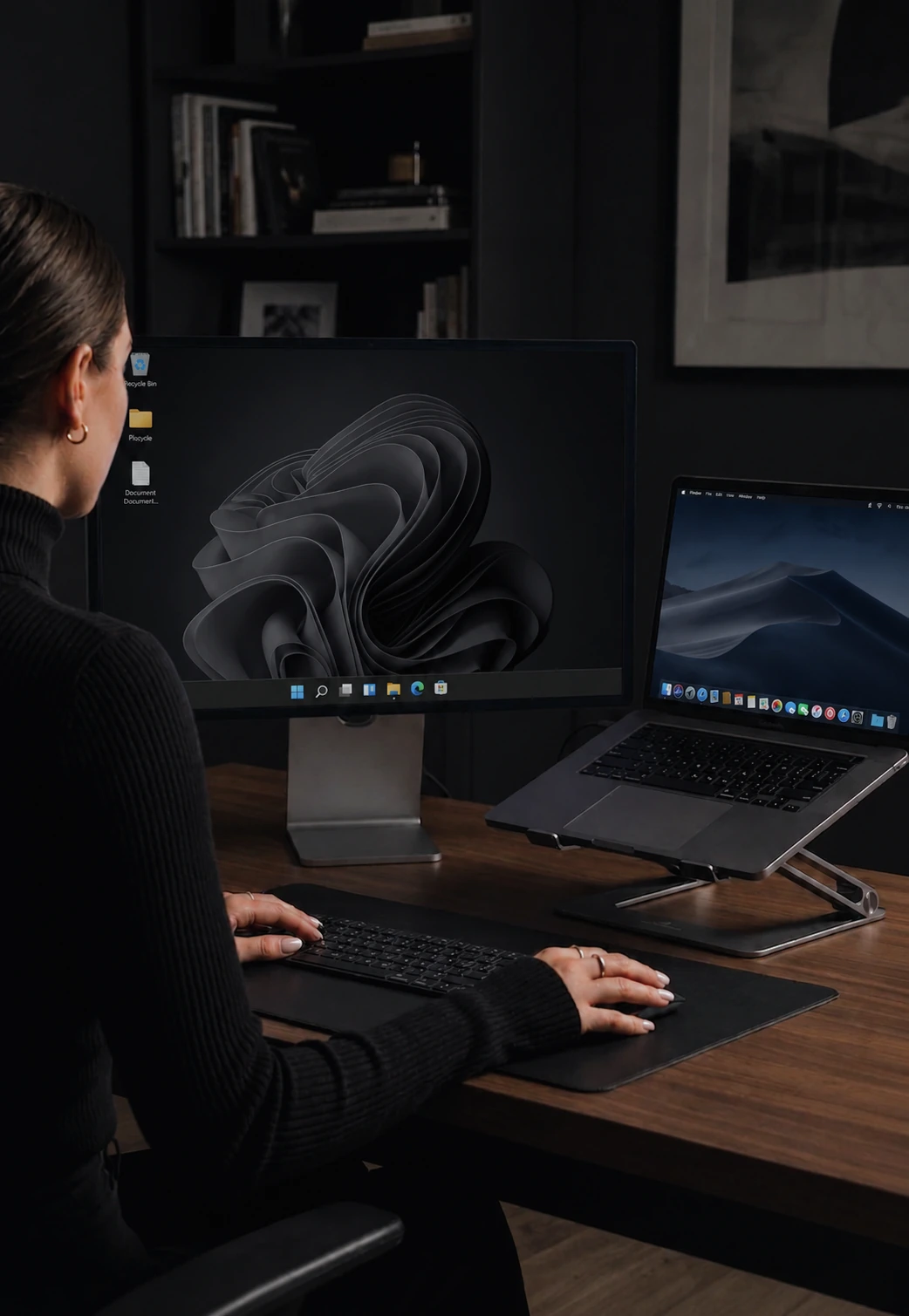

How to share a keyboard and mouse between a Mac and a Windows PC
Five steps with a software KVM, no switch box, plus the two free tools that cannot do it and what to use instead.
By the CursorHop team.Last updated .
The short answer
Install a cross-platform software KVM on both computers, connect them to the same network, and push the cursor off the edge of one screen to control the other. Your keyboard follows the cursor, the clipboard is shared, and the good tools translate Ctrl to Cmd as you cross. No switch box, no cables, and each computer keeps its own monitor.
The two free tools people reach for first both fail here: Mouse Without Borders is Windows-only, and Universal Control is Apple-only. You need an app that runs natively on both operating systems. CursorHop, ShareMouse, Synergy and Deskflow all do; Logitech Flow does if every computer has a Flow-capable Logitech mouse.
Which tools work on both a Mac and a PC
| Tool | Mac | Windows | Cmd and Ctrl | Files | Cost |
|---|---|---|---|---|---|
| CursorHop | Yes | Yes | Translated automatically | Drag-and-drop (Pro Plus and Max) | From $15 one-time, 7-day trial |
| ShareMouse | Yes | Yes | Translated | Drag-and-drop (paid editions) | Free for personal use, $99.95 paid |
| Synergy | Yes | Yes | Translated | No | $15 to $29 one-time |
| Deskflow | Yes | Yes | Translated | Broken, per its maintainers | Free, open source |
| Logitech Flow | Yes | Yes | Through Options+ | Copy and paste only | Free with a Flow-capable Logitech mouse |
| Mouse Without Borders | No | Yes | N/A | Windows to Windows only | Free |
| Universal Control | Yes | No | N/A | Apple to Apple only | Free |
The rest of this guide uses CursorHop for the steps because it discovers the other computer on its own and encrypts by default; the same five steps apply to the others, with manual host setup in place of step 4. If a Linux machine is also on the desk, Deskflow covers all three today; CursorHop's Linux support is coming soon.
Set it up in five steps
- Put both computers on the same network. Same Wi-Fi or same router is enough. Plug at least one of them into Ethernet if you can; it makes the cursor noticeably smoother. If either computer is on a VPN, pause it during setup, since a VPN can hide the computers from each other.
- Install the app on both. Download CursorHop on the Mac (macOS 13 or later) and on the PC (Windows 10 or later) from the download page. The installers are not code-signed yet, so on Windows SmartScreen shows "Windows protected your PC" (choose More info, then Run anyway), and on the Mac the first launch needs a one-time approval under System Settings, Privacy & Security.
- Give the Mac permission to move the pointer. macOS blocks input control by default. In System Settings, open Privacy & Security and turn on CursorHop under both Accessibility and Input Monitoring. Without both, the cursor will cross to the Mac but nothing will move. On the PC, allow CursorHop through the firewall when Windows asks; it uses local ports 24800 to 24802.
- Sign in on both and let them find each other. Use the same CursorHop account on the Mac and the PC. They discover each other over your local network automatically; there is no IP address to type. Other tools ask you to add each host by name or IP here instead.
- Arrange the screens and hop. In the layout editor, drag the Mac and the PC into the positions they occupy on your desk, so the cursor crosses at the edge that matches. Then push the pointer past that edge and start typing on the other computer.
Keyboard shortcuts across Mac and Windows
The part that catches people out is not the mouse, it is the keyboard. A Windows keyboard has Ctrl, Win and Alt where a Mac expects Ctrl, Cmd and Option, and the copy, paste, undo and save shortcuts live on different keys. CursorHop translates as you cross: press Ctrl+C on the Windows keyboard while the cursor is on the Mac and the Mac receives Cmd+C. Cross back and Ctrl is Ctrl again. You keep one set of muscle memory for both computers. The keyboard sharing page covers the mapping in detail, including what happens with a Mac keyboard driving a PC.
Copy, paste and files between the two
Copy on the PC, cross to the Mac, paste. Text and images move on every CursorHop plan. Files move by drag-and-drop on the trial, Pro Plus and Max plans: drag a file past the screen edge and it lands on the other computer's desktop, over your local network at around 70 Mbps, with nothing uploaded to any cloud. The file transfer page has the details and the limits.
What does not work, and what to use instead
- Mouse Without Borders: Windows-only, no Mac build announced. Use any tool in the table above. If every other computer is a Windows PC, keep Mouse Without Borders for them and add a cross-platform tool only when the Mac arrives, or move everything to one tool to avoid two layouts.
- Universal Control: Apple devices only, three at most, same Apple Account. It cannot see a Windows PC. Keep it for a Mac and an iPad; use a software KVM for the PC.
- Logitech Flow: does work across Mac and Windows, but only if every computer has a Flow-capable Logitech mouse or keyboard, and files move by copy and paste only. Fine if you already own the hardware; not worth buying it for.
- A hardware KVM switch: works for the keyboard and mouse but switches one monitor between computers, cannot share the clipboard, and does not translate shortcuts. The right tool only when both computers share a single screen. The two-computer guide compares all four approaches.
If the cursor will not cross
- The Mac does not respond: Accessibility or Input Monitoring is off. Both must be on, and the app sometimes needs a restart after you grant them.
- The computers do not see each other: they are on different networks (guest Wi-Fi counts as a different network), a VPN is active on one of them, or the Windows firewall blocked the app. Allow it through, or open ports 24800 to 24802.
- The cursor crosses but stutters: busy Wi-Fi. Wire one computer, or move the router. On a gigabit connection CursorHop measures around 7 ms median latency in our tests.
- Shortcuts do the wrong thing: check which side the cursor is on. Translation follows the cursor, so Ctrl+C with the cursor on the Mac is Cmd+C on the Mac, not on the PC.
The help center covers the rest.
Questions
Can Mouse Without Borders share a keyboard and mouse with a Mac?
No. Mouse Without Borders is Windows-only and Microsoft has not announced a Mac version. To include a Mac you need a cross-platform tool such as CursorHop, ShareMouse, Synergy or Deskflow, installed on both the Mac and the PC.
Does Universal Control work with a Windows PC?
No. Universal Control only links Apple devices signed in to the same Apple Account: a Mac with another Mac or an iPad. A Windows PC cannot join. It is the right tool only when every device on the desk is from Apple.
Do I need a KVM switch to share a keyboard between a Mac and a PC?
Only if the two computers share one monitor. If each has its own screen, a software KVM shares the keyboard and mouse over your network with no switch box and no cables, keeps both screens on, and adds a shared clipboard. A hardware switch also cannot translate shortcuts between Windows and Mac.
Will Cmd and Ctrl shortcuts work across both computers?
With CursorHop, yes: it translates Ctrl to Cmd when you cross to the Mac and back again when you return, so Ctrl+C, Ctrl+V, Ctrl+Z and the rest do what you expect on each side. Synergy and ShareMouse translate shortcuts too. Hardware switches and multi-device keyboards do not.
Can I copy and paste between a Mac and Windows?
Yes, with a software KVM that shares the clipboard. CursorHop syncs text and images on every plan, and files on the trial, Pro Plus and Max plans. Mouse Without Borders and Input Director share the clipboard, but only between Windows PCs.
Is sharing a keyboard between a Mac and PC over Wi-Fi safe?
It is if the app encrypts the connection, because every keystroke including passwords travels over your network. CursorHop encrypts every connection with the Noise protocol on every plan, with nothing to switch on. Check that whatever tool you pick does the same by default.
Keep reading
Mouse Without Borders alternatives
Eight tools ranked, including the ones that reach a Mac.
One mouse, two computers
All four methods compared, including KVM switches.
Keyboard sharing
How Ctrl and Cmd are translated as you cross.
Software KVMs compared
Eleven tools side by side, with who each one suits.