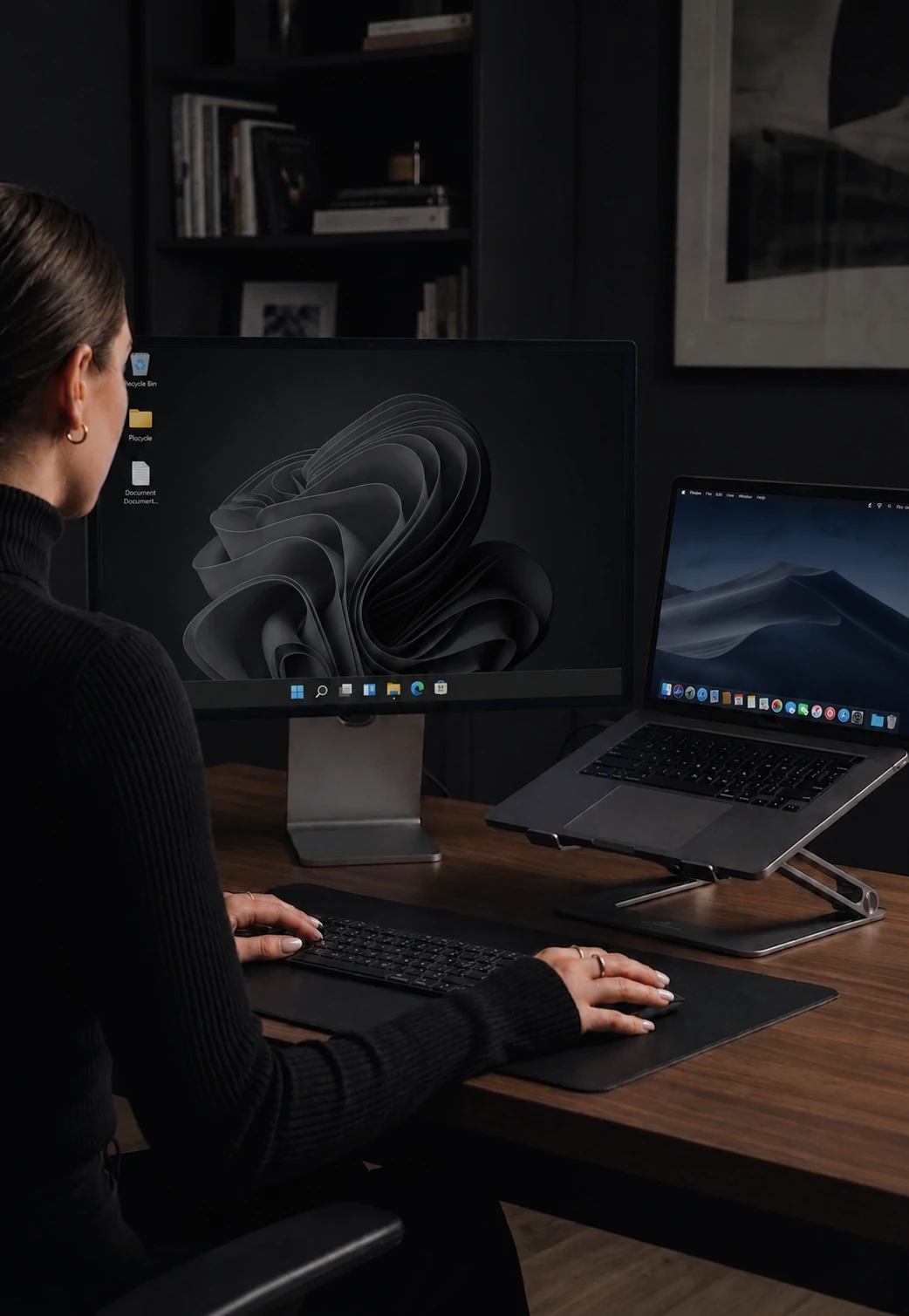

How to use one mouse and keyboard on two computers
Four ways to do it, which one fits your desk, and step-by-step setup. Windows and Mac included.
By the CursorHop team.Last updated .
The short answer
There are four ways to control two computers with one keyboard and mouse. A software KVM shares them over your local network, and each computer keeps its own screen. A hardware KVM switch moves your keyboard, mouse and one monitor between computers at the press of a button. A multi-device keyboard and mouse pairs with several computers and switches with a button. Universal Control links a Mac with an iPad or another Mac, and only Apple devices.
If each computer has its own monitor, and especially if one is a Windows PC and the other a Mac, a software KVM is usually the best fit. If two computers share one monitor, you want a hardware switch.
The four methods compared
| Method | Windows and Mac together | Both screens on at once | Shared clipboard | Cost |
|---|---|---|---|---|
| Software KVM | Yes, with a cross-platform app | Yes, each computer keeps its own | Yes, and files on some apps | Free to $40 |
| Hardware KVM switch | Yes, but shortcuts do not translate | No, one monitor is switched | No | $50 to $500+ |
| Multi-device keyboard and mouse | Yes | Yes | No | A new keyboard and mouse |
| Apple Universal Control | No, Mac and iPad only | Yes | Yes, between Apple devices | Free |
Method 1: use a software KVM
A software KVM is an app that runs on each computer. Your mouse and keyboard stay plugged into one computer, and when you push the cursor off the edge of its screen it appears on the other computer's screen. Your typing follows the cursor. Good apps also share the clipboard, so you can copy on one computer and paste on the other.
How to set it up
- Connect both computers to the same network. The same Wi-Fi or the same router is enough. Ethernet on at least one computer makes the cursor smoother.
- Install the same app on both computers. For a Windows PC and a Mac, the app has to support both. CursorHop runs on Windows 10 or later and macOS 13 or later.
- Let the computers find each other. CursorHop discovers the other computer on its own. Some tools ask you to type the other computer's name or IP address instead.
- Arrange the screens. Drag the screens in the app's layout so they match how the monitors sit on your desk. That decides which edge the cursor crosses.
- Move the cursor across. Push the pointer past the shared edge and start typing on the other computer.
If it does not connect
Most problems come from two places. On a Mac, the app needs Accessibility and Input Monitoring permission in System Settings, under Privacy & Security, before it can move the pointer or read the keyboard. On Windows, allow the app through the firewall when it asks. CursorHop uses local ports 24800 to 24802. The help center covers the rest.
Method 2: use a hardware KVM switch
A KVM switch is a small box. Each computer connects to it with a video cable and a USB cable, and your monitor, keyboard and mouse plug into the box. Press a button or a hotkey and everything moves to the other computer.
It is the right tool when two computers have to share one monitor, or when a computer cannot run extra software, such as a locked-down work machine. The trade-offs are cables for every computer, a pause each time you switch, no shared clipboard, and shortcuts that do not translate between Windows and Mac.
Method 3: use a multi-device keyboard and mouse
Many wireless keyboards and mice can pair with two or three computers at once. You press a button on each one to change which computer it talks to. It is simple and needs no software, but you switch the keyboard and the mouse separately, and nothing like the clipboard moves between computers.
Method 4: use Universal Control (Mac and iPad only)
If every device is from Apple, Universal Control is built in and free. It links a Mac with an iPad or another Mac signed in to the same Apple Account, up to three devices. On the Mac, open System Settings, then Displays, then Advanced, and turn on the option to let your pointer and keyboard move between any nearby Mac or iPad. It does not work with Windows PCs. The Universal Control comparison covers the details.
Which one should you use?
- A Windows PC and a Mac, each with its own monitor: a cross-platform software KVM such as CursorHop.
- Two computers and one monitor: a hardware KVM switch, or a monitor with a KVM built in.
- Only Apple devices: Universal Control.
- Only Windows PCs, no budget: Mouse Without Borders is free and works for up to four PCs.
- A Linux computer in the mix: Deskflow (free and open source) or Synergy. CursorHop does not support Linux yet.
For a side-by-side look at ten software KVMs, see the full comparison table.
Questions
Can I use one keyboard and mouse for two computers without a KVM switch?
Yes. A software KVM shares your keyboard and mouse over your local network, so there is no switch box and no extra cables. You install the same app on both computers and move your cursor off the edge of one screen to control the other.
Does it work between a Windows PC and a Mac?
Yes, as long as the app runs on both. CursorHop, Synergy, Deskflow and ShareMouse all support Windows and macOS. CursorHop also translates shortcuts, so Ctrl+C on Windows becomes Cmd+C on the Mac.
Do both computers need to be on the same network?
For a software KVM, yes. Both computers need to be on the same local network, over Wi-Fi or Ethernet. A wired connection gives the smoothest cursor.
Is there any lag?
On a wired gigabit network it is hard to notice. CursorHop measures around 7 ms median cursor latency in our internal gigabit LAN tests. Busy Wi-Fi adds variation, so wire at least one of the computers if you can.
Is sharing a keyboard over the network safe?
It is if the app encrypts the connection. Every keystroke, including passwords, travels over your network, so pick a tool that encrypts by default. CursorHop encrypts every connection with the Noise protocol on every plan, with nothing to switch on.